Played on 2 October 2026
From an empty garage to your first game
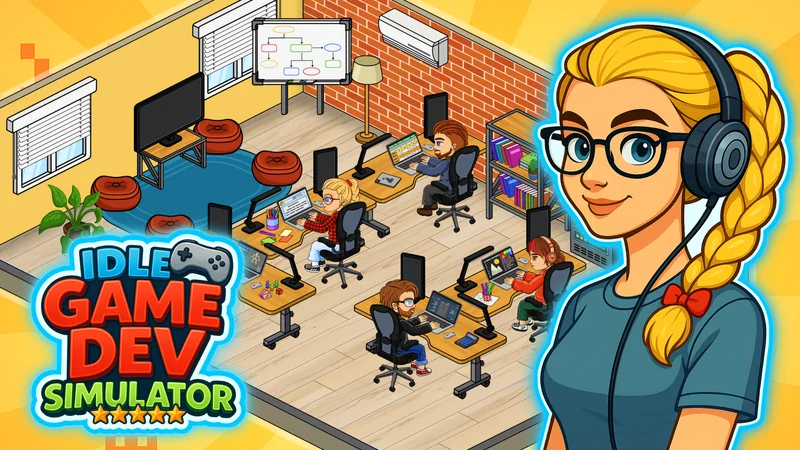
This is the PlayCroc game hosted by Playgama. The steps below follow its browser tutorial, starting with the empty garage and the default company and player names.
Set up the desk, then leave the Office menu
On the Company Info screen, choose Continue, then Start when asked whether to do the tutorial. Click through the opening dialogue until the hand points to the Office panel.
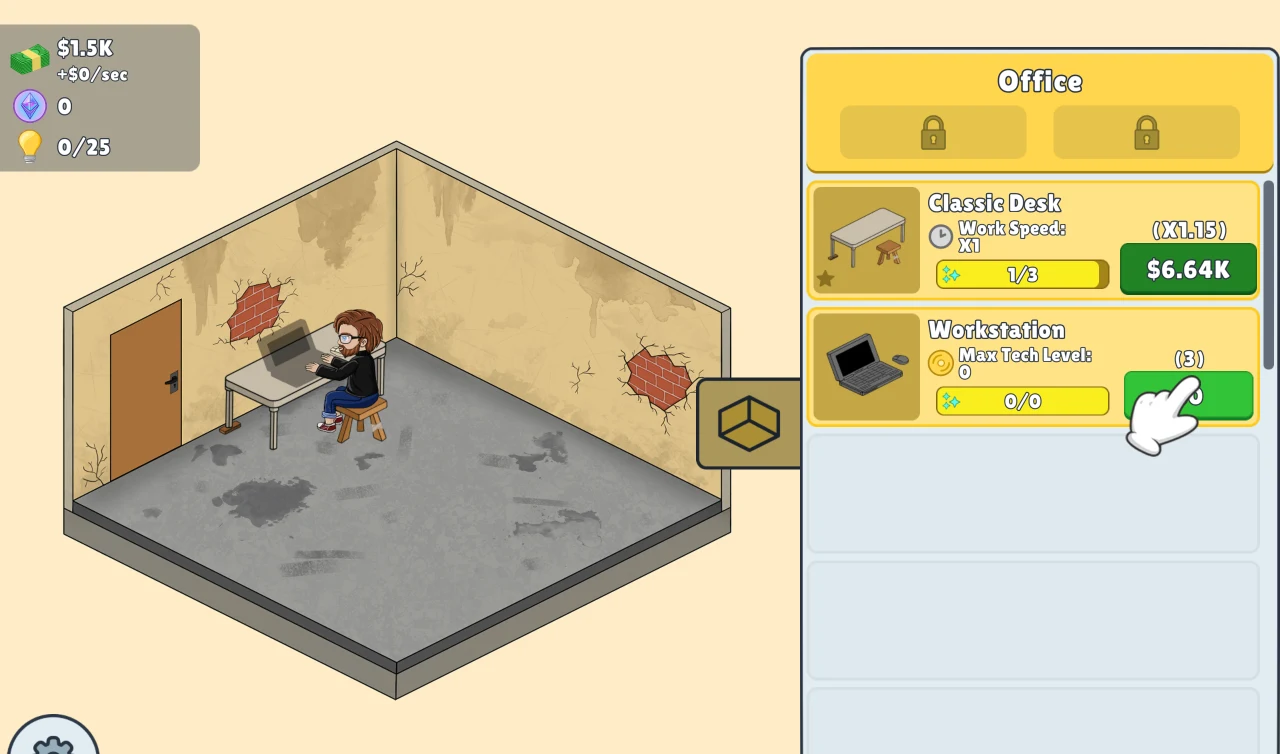
- Click the green button beside Workspace. A desk appears in the room.
- Click the green button beside Workstation. The first computer appears on the desk.
- Continue through the dialogue, then click near your seated character in the room. Choose New Game from the action menu.
Fill in the concept and check the draft
Open each blue selector for Genre, Topic and Platform. Pick an unlocked option. Our first project used Action, Castles and PC. That is a worked example, not a tested best combination.
Give the game a name in the top field. We used the dice button after choosing the three options; it supplied “The Fallen Keep.” If the name still shows an ellipsis, the concept is not finished.
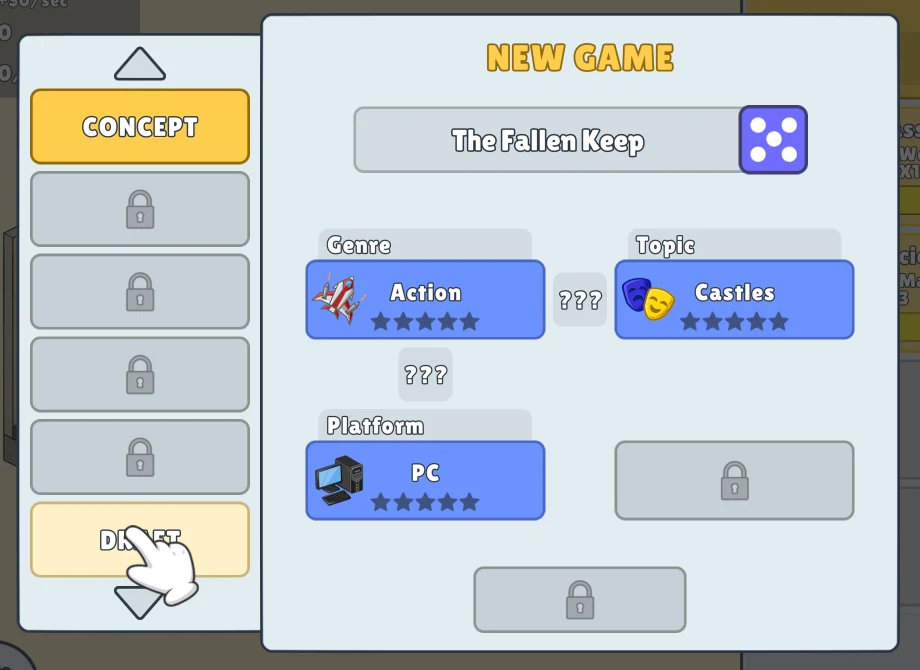
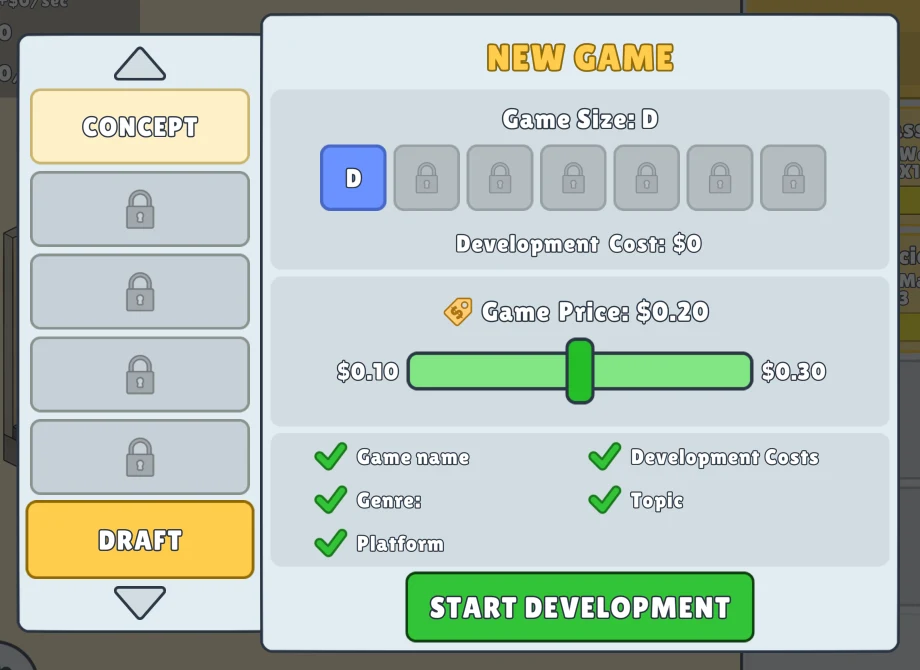
Choose Draft in the left column. Check the green ticks for Game name, Genre, Platform, Development Costs and Topic. Our tutorial draft offered size D, a $0 development cost and a price slider set to $0.20. We left those settings alone and clicked Start Development.
Open Results when development finishes
Back in the garage, the project name and progress appear above your character. Wait for the green Results button, then open it. The Game Ready panel shows the score and bug count, with Publish Game below.
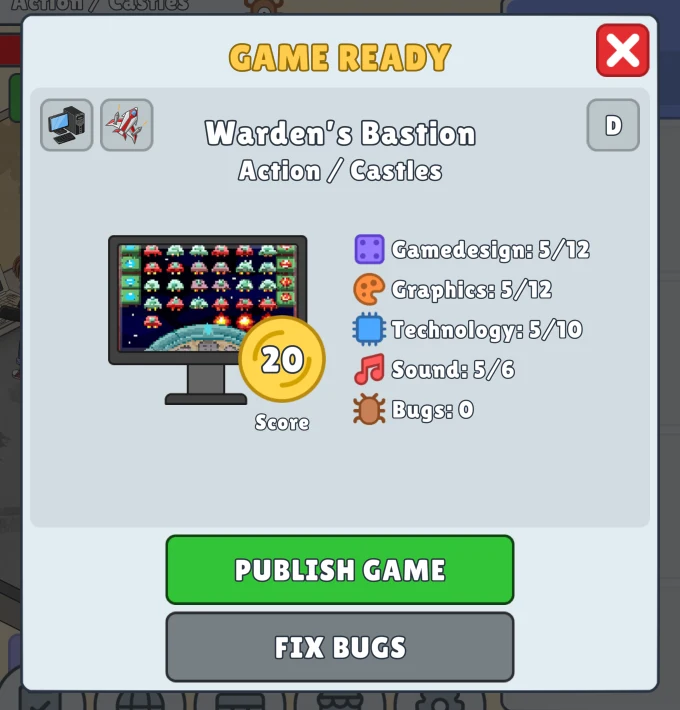
Our completed project showed zero bugs, so we chose Publish Game. The game then showed its review; choose Continue to return to the studio. Our release appeared in the Games panel with a 3.7 review, so this is a first-release walkthrough, not a high-score recipe. We did not test the Fix Bugs option with bugs remaining.
One session note: after the browser closed during our first development attempt, the desk and computer returned but the unfinished project did not. We created another project, “Warden’s Bastion,” with the same genre, topic and platform. Finish your first run before relying on a refresh to preserve it. We have not tested cross-device saves or offline earnings.
Devices and source
Play in your browser
The official listing includes desktop, Android and iOS. Supported orientation: Landscape. Actual availability depends on your device and browser.
Developer: PlayCroc. Floor 2½ provides this introduction and play entry.
The game is provided by Playgama and may show ads. See our privacy notice. View the Playgama game page.